

Map Your Environment into a Graph
Turn your AWS, Google Cloud or Azure environment, a Kubernetes cluster or a Terraform state into a diagram your whole team can read: one command, read-only, and you can share it with a link.
A Graph is a diagram Viewert keeps for you: boxes for the things you run (servers, databases, queues, functions) and lines for how they connect. Instead of drawing it by hand, you point the Viewert command-line tool at your cloud (or at a Terraform file) and it draws the whole thing for you, with each service's official icon. It only reads: nothing in your cloud is created, changed or deleted. Then you click around it, tidy it, and share it: a link, a picture for your slides, or a file for draw.io.
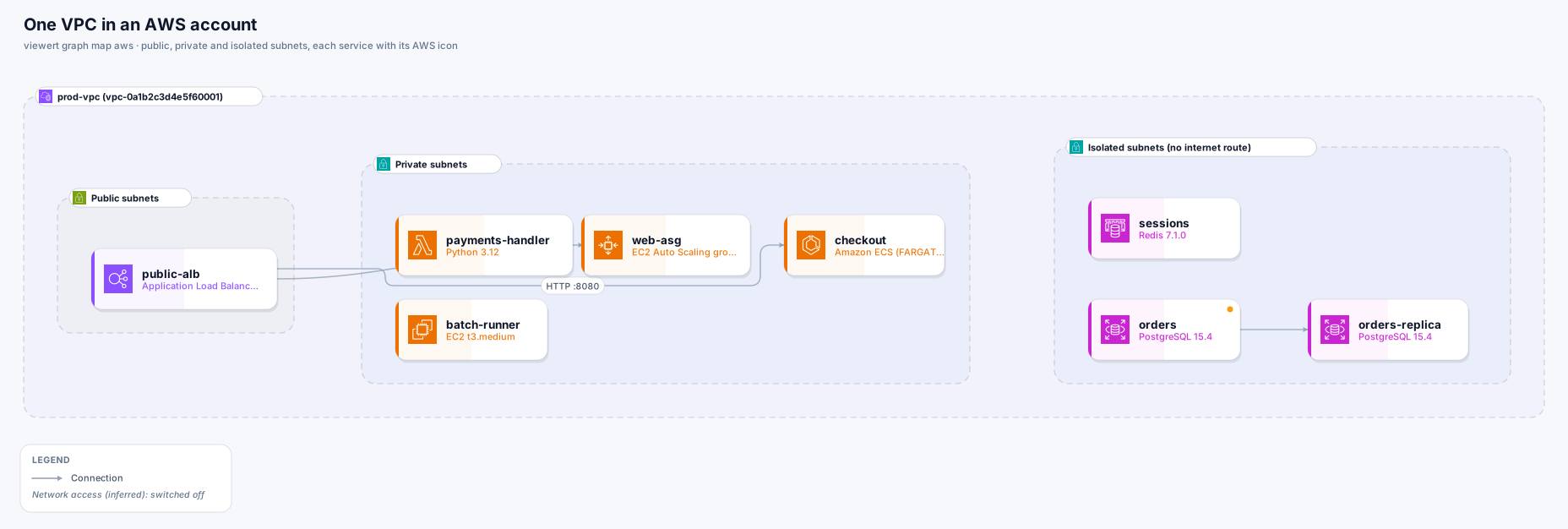
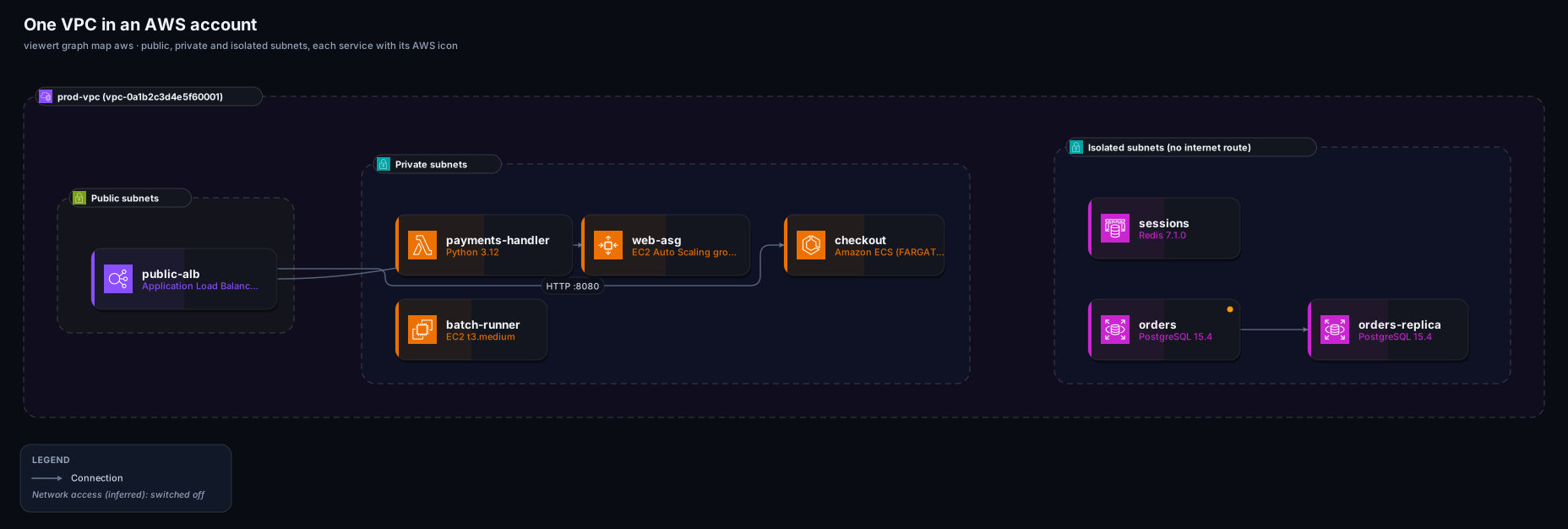
viewert graph map aws. Click the picture to see it full size.Pick the line that sounds like you. Each one is the whole job.
- Run this
viewert graph map aws --region us-east-1 --open- Read
- Quickstart
- Run this
terraform show -json > state.jsonthenviewert graph map terraform state.json --open- Read
- Map Terraform
- Run this
viewert graph map terraform plan.json --open- Read
- Recipes
- Run this
viewert graph map azure --openorviewert graph map gcp --project ID --open- Read
- Azure, Google Cloud
- Run this
viewert graph map k8s --open- Read
- Map Kubernetes
- Run this
- ask a teammate to export a file, then
--from-snapshot FILE - Read
- Recipes
- Run this
- Make it public and send the link, or Export a PNG
| I want to… | Run this | Read |
|---|---|---|
| See my AWS account as a diagram | viewert graph map aws --region us-east-1 --open | Quickstart |
| Draw what my Terraform defines | terraform show -json > state.json then viewert graph map terraform state.json --open | Map Terraform |
| See what a Terraform plan will change | viewert graph map terraform plan.json --open | Recipes |
| Draw Azure or Google Cloud | viewert graph map azure --open or viewert graph map gcp --project ID --open | Azure, Google Cloud |
| Draw a Kubernetes cluster or a Helm chart | viewert graph map k8s --open | Map Kubernetes |
| Draw it, but I have no cloud login to use | ask a teammate to export a file, then --from-snapshot FILE | Recipes |
| Share the result with my team | Make it public and send the link, or Export a PNG | Quickstart, step 6 |
There are three ways to give Viewert something to draw, and many ways to use what it draws.
You are being asked to point a tool at your cloud, so here is exactly what it does and does not do.
It only reads
Viewert asks your cloud to list and describe things, nothing else. The list of commands is fixed inside the tool and anything else is refused before it runs. Add --dry-run to any command and it prints every command it would run, without running any.
It uses your login, not ours
It runs the aws, gcloud, az or kubectl program already on your computer with the sign-in you already have. Viewert never sees your cloud password or keys.
Secrets stay out
Environment variables, startup scripts, passwords, keys and tokens are removed before anything is saved. A Terraform state is read in memory and never kept.
It starts private
The new Graph is yours alone until you choose to share it. Want to look first? --out file.vgf --no-upload writes the Graph to a file and saves nothing.
It shows up in your cloud's audit log
Your own CloudTrail, Cloud Audit Logs or Azure Activity Log record these read calls under your name, like anything else you run.
A map is a set of claims, and each one says where it came from.
Boxes
Something that runs code, stores data, moves messages or sits in front of the internet. Click one for its full name, its identifier (with a copy button), a link to its page in your cloud's console, and its settings.
Frames
The boundaries your provider has: AWS account, region, VPC and subnet; Google Cloud project and network; Azure subscription, virtual network and subnet; Kubernetes namespace. Boxes sit inside the frame they live in.
Solid lines are facts
They are written down in your configuration: a load balancer sends traffic to a server, a CDN reads from a bucket, a function is triggered by a queue. Click a line and it tells you exactly which setting says so.
Dotted lines are conclusions
Viewert worked them out, for example from a firewall rule that lets one group reach a database port. They are real clues, not proof, so check them before relying on them. There are often many of them, so they sit on a Network access layer that starts switched off.
No line means no claim
Viewert reads configuration, not traffic. If two boxes have no line, it does not mean they never talk, only that nothing in the configuration says they do. Draw the missing line by hand in the editor.
Internet exposure
A resource whose own settings let the internet reach it is marked (a public IP, an internet-facing load balancer, a firewall rule open to everyone). The Internet exposure view shows them all. It states what is configured, not that something is reachable or unprotected.
Run the same command again with --replace GRAPH-ID to refresh a Graph (this replaces its contents, so hand edits are lost: it asks first). To see what changed between two dates, viewert graph diff last-month.json today.json lists what was added, removed and changed. The recipes show both.
The tool says what to do. The usual ones, and the full list is in the quickstart:
“aws: command not found” (or gcloud, az, kubectl)
Install that cloud's own command-line tool first, or draw from a file instead.
Not signed in
Sign in the way you normally do (aws sso login, gcloud auth login, az login) and run it again. Nothing was read.
Not allowed to read something
The map goes on without it and the Graph's description says what was skipped. Ask for a read-only role: the reference lists exactly what is needed.
Nothing was found
Check the region, project or subscription, and that your sign-in may list resources there.